figure元素自始可用
A figure with an optional caption.
Automatically detects its kind to select the correct counting track. For example, figures containing images will be numbered separately from figures containing tables.
Examples
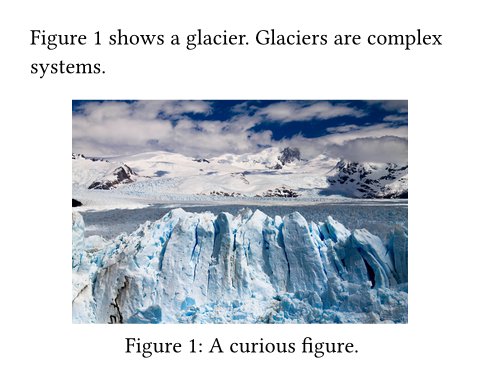
The example below shows a basic figure with an image:
@glacier shows a glacier. Glaciers
are complex systems.
#figure(
image("glacier.jpg", width: 80%),
caption: [A curious figure.],
) <glacier>
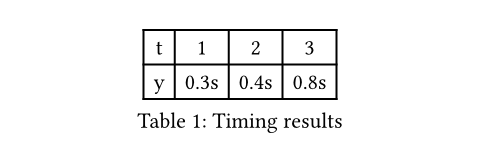
You can also insert tables into figures to give them a caption. The figure will detect this and automatically use a separate counter.
#figure(
table(
columns: 4,
[t], [1], [2], [3],
[y], [0.3s], [0.4s], [0.8s],
),
caption: [Timing results],
)
This behaviour can be overridden by explicitly specifying the figure’s kind. All figures of the same kind share a common counter.
Figure behaviour
By default, figures are placed within the flow of content. To make them float to the top or bottom of the page, you can use the placement argument.
If your figure is too large and its contents are breakable across pages (e.g. if it contains a large table), then you can make the figure itself breakable across pages as well with this show rule:
#show figure: set block(breakable: true)See the block documentation for more information about breakable and non-breakable blocks.
Caption customization
You can modify the appearance of the figure’s caption with its associated caption function. In the example below, we emphasize all captions:
#show figure.caption: emph
#figure(
rect[Hello],
caption: [I am emphasized!],
)

By using a where selector, we can scope such rules to specific kinds of figures. For example, to position the caption above tables, but keep it below for all other kinds of figures, we could write the following show-set rule:
#show figure.where(
kind: table
): set figure.caption(position: top)
#figure(
table(columns: 2)[A][B][C][D],
caption: [I'm up here],
)

Accessibility
You can use the alt parameter to provide an alternative description of the figure for screen readers and other Assistive Technology (AT). Refer to its documentation to learn more.
You can use figures to add alternative descriptions to paths, shapes, or visualizations that do not have their own alt parameter. If your graphic is purely decorative and does not have a semantic meaning, consider wrapping it in pdf.artifact instead, which will hide it from AT when exporting to PDF.
AT will always read the figure at the point where it appears in the document, regardless of its placement. Put its markup where it would make the most sense in the reading order.
参数
body
The content of the figure. Often, an image.
alt默认值:none
An alternative description of the figure.
When you add an alternative description, AT will read both it and the caption (if any). However, the content of the figure itself will be skipped.
When the body of your figure is an image with its own alt text set, this parameter should not be used on the figure element. Likewise, do not use this parameter when the figure contains a table, code, or other content that is already accessible. In such cases, the content of the figure will be read by AT, and adding an alternative description would lead to a loss of information.
You can learn how to write good alternative descriptions in the Accessibility Guide.
placement默认值:none
The figure’s placement on the page.
none: The figure stays in-flow exactly where it was specified like other content.auto: The figure pickstoporbottomdepending on which is closer.top: The figure floats to the top of the page.bottom: The figure floats to the bottom of the page.
The gap between the main flow content and the floating figure is controlled by the clearance argument on the place function.
 展开示例
展开示例
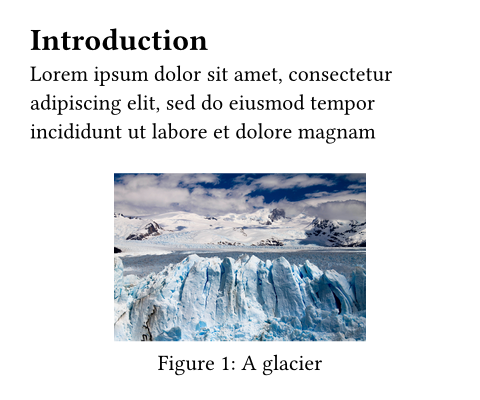
#set page(height: 200pt)
#show figure: set place(
clearance: 1em,
)
= Introduction
#figure(
placement: bottom,
caption: [A glacier],
image("glacier.jpg", width: 60%),
)
#lorem(60)
scope默认值:"column"
Relative to which containing scope the figure is placed.
Set this to "parent" to create a full-width figure in a two-column document.
Has no effect if placement is none.
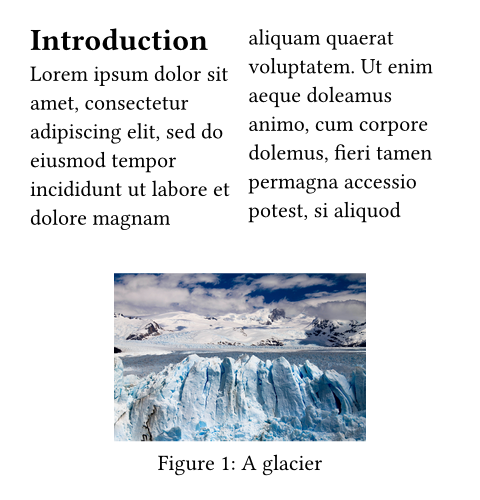
展开示例
#set page(height: 250pt, columns: 2)
= Introduction
#figure(
placement: bottom,
scope: "parent",
caption: [A glacier],
image("glacier.jpg", width: 60%),
)
#lorem(60)
| Variant | Details |
|---|---|
"column" | Place into the current column. |
"parent" | Place relative to the parent, letting the content span over all columns. |
caption默认值:none
The figure’s caption.
kind默认值:auto
The kind of figure this is.
All figures of the same kind share a common counter.
If set to auto, the figure will try to automatically determine its kind based on the type of its body. Automatically detected kinds are tables and code. In other cases, the inferred kind is that of an image.
Setting this to something other than auto will override the automatic detection. This can be useful if
- you wish to create a custom figure type that is not an image, a table or code,
- you want to force the figure to use a specific counter regardless of its content.
You can set the kind to be an element function or a string. If you set it to an element function other than table, raw, or image, you will need to manually specify the figure’s supplement.
展开示例:Customizing the figure kind
#figure(
circle(radius: 10pt),
caption: [A curious atom.],
kind: "atom",
supplement: [Atom],
)

If you want to modify a counter to skip a number or reset the counter, you can access the counter of each kind of figure with a where selector:
- For tables:
counter(figure.where(kind: table)) - For images:
counter(figure.where(kind: image)) - For a custom kind:
counter(figure.where(kind: kind))
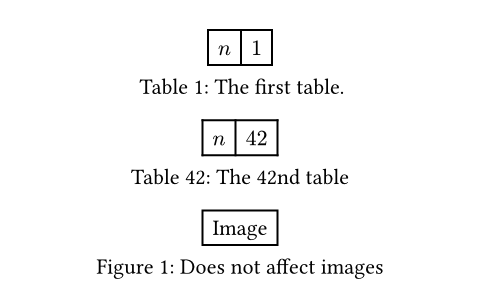
展开示例:Modifying the figure counter for specific kinds
#figure(
table(columns: 2, $n$, $1$),
caption: [The first table.],
)
#counter(
figure.where(kind: table)
).update(41)
#figure(
table(columns: 2, $n$, $42$),
caption: [The 42nd table],
)
#figure(
rect[Image],
caption: [Does not affect images],
)
To conveniently use the correct counter in a show rule, you can access the counter field. There is an example of this in the documentation of the figure.caption element’s body field.
supplement默认值:auto
The figure’s supplement.
If set to auto, the figure will try to automatically determine the correct supplement based on the kind and the active text language. If you are using a custom figure type, you will need to manually specify the supplement.
If a function is specified, it is passed the first descendant of the specified kind (typically, the figure’s body) and should return content.
展开示例
#figure(
[The contents of my figure!],
caption: [My custom figure],
supplement: [Bar],
kind: "foo",
)

numbering默认值:"1"
How to number the figure. Accepts a numbering pattern or function taking a single number.
gap默认值:0.65em
The vertical gap between the body and caption.
outlined默认值:true
Whether the figure should appear in an outline of figures.
定义
caption元素0.8.0起可用
The caption of a figure. This element can be used in set and show rules to customize the appearance of captions for all figures or figures of a specific kind.
In addition to its position and body, the caption also provides the figure’s kind, supplement, counter, and numbering as fields. These parts can be used in where selectors and show rules to build a completely custom caption.
展开示例
#show figure.caption: emph
#figure(
rect[Hello],
caption: [A rectangle],
)

position默认值:bottom
The caption’s position in the figure. Either top or bottom.
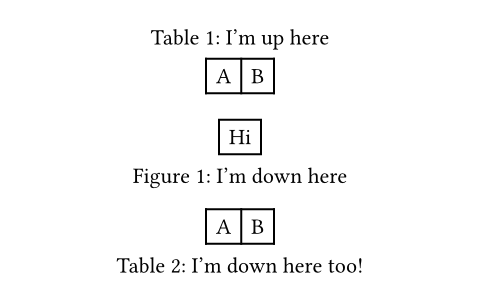
展开示例
#show figure.where(
kind: table
): set figure.caption(position: top)
#figure(
table(columns: 2)[A][B],
caption: [I'm up here],
)
#figure(
rect[Hi],
caption: [I'm down here],
)
#figure(
table(columns: 2)[A][B],
caption: figure.caption(
position: bottom,
[I'm down here too!]
)
)
separator默认值:auto
The separator which will appear between the number and body.
If set to auto, the separator will be adapted to the current language and region.
展开示例
#set figure.caption(separator: [ --- ])
#figure(
rect[Hello],
caption: [A rectangle],
)

body
The caption’s body.
Can be used alongside kind, supplement, counter, numbering, and location to completely customize the caption.
展开示例
#show figure.caption: it => [
#underline(it.body) |
#it.supplement
#context it.counter.display(it.numbering)
]
#figure(
rect[Hello],
caption: [A rectangle],
)